VLAN & VTP Basics

Creating VLANs is an easy task, but you may run into issues with the VLANs populating between the other access switches (VTP : Client).

Option One (used to create the VLAN)

**Option One**
(config)#vlan 10
(config-vlan)#name SALES

&

**Option Two** 
(config)#interface vlan 10
(config-if)#description SALES
(config-if)#ip address a.b.c.d x.x.x.x

Option two allows you to set a static interface for IP routing. 


For EXTENDED VLANs(1006-4096), VTP mode must be in Transparent. Server mode should throw errors, probably not in IOL devices.

(config)#vtp mode transparent

By default all cisco catalysts come preconfigured with VTP server mode. You will need to change this on all access switches not serving vlans. First,

(config)#vtp mode Server
or
(config)#vtp mode Transparent
or
(config)#vtp mode Client

then, set the domain

(config)#vtp domain CISCO

This will put the switch in client mode and on the same domain as the VTP server. Allowing it to accept VLAN configs from the core or Firewall. If you run into an MD5 digest checksum mismatch error, you may need to change the password on all devices in the same domain that need VTP configs, like this: 

(config)#vtp password cisco

You will then want to issue the below command to show the current status: 

#show vtp status
Sw1>sh vtp status
VTP Version capable             : 1 to 3
VTP version running             : 1
VTP Domain Name                 : CISCO
VTP Pruning Mode                : Disabled
VTP Traps Generation            : Disabled
Device ID                       : aabb.cc00.1200
Configuration last modified by 0.0.0.0 at 7-5-19 23:13:37
Local updater ID is 0.0.0.0 (no valid interface found)


Feature VLAN:
--------------
VTP Operating Mode                : Server
Maximum VLANs supported locally   : 1005
Number of existing VLANs          : 9
Configuration Revision            : 0
MD5 digest                        : 0x87 0x6A 0xFA 0xCB 0xD3 0x27 0xDF 0x0C
                                    0x04 0xF4 0x94 0x8E 0x18 0xEA 0xE9 0x84


mRemoteNG

Are you a fan of Putty? What about SuperPutty? Well, this program that I’m about to tell you about, compiles the best of SuperPutty GUI, SecureCRT functionality for FREE!

That’s right, you get SSHv1 & 2, Telnet, VNC, RDP, and many other common terminal protocols all in one program. But lets talk about the best part. mRemoteNG offers tab view – you can have SSH tabs and RDP tabs open in a single program (mRemoteNG) at the same time!

It’s pretty amazing. Lets give these developers some love, download and use their program, donate and spread the word!

Cisco Certification rebuild!

It’s official! Cisco has finally decided to do a complete rebuild of their certificate program.

Check out the famous network blog by Kevin Wallace: https://www.kwtrain.com/blog/certupdate?cid=98b3de66-d267-46fd-b804-d5824a287ea8&fbclid=IwAR1Be9O8nZcTTXMyd6FsH-O30USC09wTzB03rAuDHhKO3HJzv3QSkHGFxfQ

This is all the information we have right now, but stay tuned and keep learning!

Forest – Habit app

Forest Productivity App

Looking to “Gamify” your study habits? Or maybe you just want to feel artifically good about yourself while putting in the hours to study? I did, which is why I stumbled upon “Forest”, which is a study/habit building application.

Each time I study, I start a timer, 15, 25, or whatever I want. 15 minutes will get you a bush while 25 minutes will land you a tree. Cut your time short? You’re virtually killing your tree. Don’t be that guy/gal.

Objective Study Partner

Look, there are many areas of life where having a partner is the best, and the worst. When studying, with two people setting common objectives and targets, makes for a successful partnership.

Just like this blog, it’s a place for us to dump projects, resources, and roadblocks that we identified throughout our journey. Luckily, we have different paths but a similar journey.

Daniel called me one day and asked me if I’d be interested in setting real objective goals. Well… I’m an MBA (humble brag), aspiring Network guru and I know Daniel is amazing at what he does, but he’s gonna have to write about that… With all of this said, what could I lose? It’s obviously in my blood to set goals and achieve them.

Daniel and I both have CCNA’s – to date. So, we set our first goal. In two weeks we will jump on a conference call (day 2 of my first real vacation!) to cover EIGRP and OSPF at the NP level. This means that we will both study independently, come together on a call and share what we both learned. Sounds a lot like your moms book club doesn’t it? Cringy…

But it works.

Get the emotions out of your head so that you can maintain peak clarity! This is a long road to travel (we’re coming for you ‘Pan-American Highway’), so find a reliable partner, fuel up and start rolling.

CDP Neighbor – 6.2.2019

Technology: CDP Neighbor

What does this technology do? CDP Neighbor is used to identify directly connected devices on a Cisco system.  

Use case? If you don’t have physical access to an adjacent switch, you can use CDP Neighbor to identify the device on a specific port. 

Basic Command:
#show cdp neighbors

Full Command:
#show cdp neighbors [ interface { ethernet slot/port | mgmt mgt-num}][ detail]
  • interface – Shows CDP neighbor info for that specified interface. 
  • ethernet – Shows CDP neighbor info for an Ethernet interface. 
  • mgmt – Shows CDP neighbor info for management interface. 
  • detail – Shows the detailed information about CDP neighbors. 

My lab: 

How I used it: 

In todays lab, we will use CDP Neighbor commands to determine which devices are directly connected to the MainDistribution switch from within the CLI of the MainDistribution.  It’s obvious that the AccessLayer switch and the EdgeRouter are directly connected, however, we are not always working in lab environments. In a real world application, the AccessLayer switch may be several hundred feet away. Understanding CDP Neighbor commands will help us determine the exact adjacently attached devices that we have in our network. 


To start, I started all of my network devices. Once booted, I decided to login and run the CDP Neighbor command

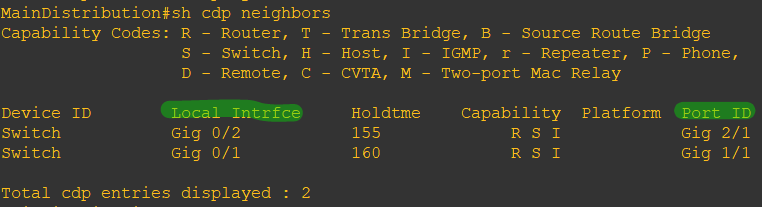
#show cdp neighbors

From here you can see the “Local Intrfce” and the “Port ID”. The Local Interface identifies the current switch that you are currently working on and the port that is locally attached to the remote device. The Port ID identifies the remote device port number. So, MainDistribution (Gig 02 from the “Local Intrfce”) is directly connected to the AccessLayer (Gig2/1 from the Port ID) switch. 


Now, you may be asking, how do you know that the adjacent device is the “AccessLayer”? Well, based on the previous image, you cannot unless you know the environment very well. Let me explain. 


The “Device ID” column shows the adjacent device “Hostname”. If the hostname is configured and you understand the name, then you will be able to identify the adjacent switch. Take a look: 

I changed the hostname of the adjacent device so that you can see the difference between screenshots. In my first image, the Device ID said “Switch”, which is the default hostname. Since I changed it, you can now see “AccessLayer” as the Device ID for the connected device. 


Now that you can identify the adjacent device, the local port number and the adjacent port number, we can now spend some time to understand the “Holdtme” column and what to do if the CDP command isn’t showing anything. 


“Holdtme” means Hold Time, this is the length of time that the switch will hold that information before it discards it. You can use the following command to specify the time (Default = 180s). (Think “Time To Live”) 

(config)#CDP holdtime <60>

I personally prefer the shorter times, but if you have a ton of management traffic, you can cause CPU/RAM overload… You can always set the time when you are troubleshooting and reset it when you’re done. 
Finally, if CDP neighbors is not working, you may need to enable it on your devices. This is a very easy command.  

(config)#CDP enable

Reference:

Cisco.com

Duplicate IP! – 5.27.2019

Well, I’m dealing with this on my night off. 42 of my Meraki access points are yelling and complaining like a bunch of kids shopping with their mommy during a hot summer day about not finding home.

Yeah, I mean, I’m upset too.

I drove 45 minutes to work (yep, I commute)… Upon arrival, I decided to get my priorities straight, so I started Spotify and played by favorite playlist (lots of hip-hop) of aggressive music.

I then started to TSHOOT by logging into Meraki > Wireless > Monitor > Access Points where I confirmed if any errors were still populating. They were.

I immediately decided that I needed to verify if I added/removed any devices from my network by matching up the dates from when the alerting started and my ticket queue. We decommissioned a few network devices, but we made zero network changes.

Phase II, I RDP’d into my DHCP and DNS server to validate the AP IP addresses. All checked out. I then reviewed DHCP for any “Bad Addresses”. I had 50+ “Bad Addresses”… Yeah, that’s an issue. They were all on the same VLAN (20) that Meraki was claiming DHCP failures on (5/5 transmit failures on VLAN 20).

Okay, so I deleted the “Bad Addresses” since nobody was on campus just to see if we had a stuck entry or caching issue. Most of the IP entries did not come back online. Great. Moving on.

Phase III, I panned over to my DNS server. Wow, okay, I have a lot of clean up that I need to do… PTR entries from 2016!! Okay, I’ll delete most of those entries (since I knew that they were not needed). Checked AP status, we’re almost there, I’m starting to see AP’s come online.

I then decide to go back to DHCP and refresh the lists to see if any entries have been updated. Welp, there she was… ap0016xx.domain.com with a VLAN 20 ip address… I don’t know about you, but I don’t put my access points on access vlans. AP’s belong on the network VLANs.

I take the device name and search Meraki, bing! It pops up immediately with a conflicting IP address! I trace the source port and disable the switchport. The AP goes offline. I refresh my Meraki dashboard and continue to delete the remaining “Bad Addresses” from my DHCP.

Success! All AP’s are online.

I then, physically, traced down the rogue AP in my environment and found that it was coming from our intern VLAN with a DHCP and Print server on it… The dated DNS records was giving our intern server an old Cisco AP name! Several things happened here that could have prevented this issue, however, it was a great reminder that we must stick to our “Maintenance” schedules and keep our network as clean as possible with regular updates and checks of all systems.


Resource Credits:

CyberSec & Fraud – 5.22.2019

I attended a Cyber Security and Fraud conference today with special agent Eric in the white collar crimes division in New Orleans. It was very insightful to learn about our immediate attacks and pressures.

To start, there are countries are countries with written agendas to target countries like ours (USA). With bankers tightening their security and protocols for handling their processes, its now forcing the hackers and criminals to move their operations directly to the client(s). It’s great that banking institutions are cracking down on security (passwords, encrypted communications, malware/adware/ransomware detectors and scanners and phishing simulations).

With the immediate threat coming from foreign internationals, security agencies like the CIA, FBI and local police need to move quickly to identify and target these criminals. $350,000,000 was criminally taken through the banking system (I believe only in Louisiana), with 76% of which being recovered. That’s a great number recovered! At the same time, there’s a lot of money that was not recovered!

The FBI set up https://www.ic3.gov/default.aspx for community members to report suspected criminal activity. The quicker you report, the quicker they can deploy their task forces to combat the criminals.


Don’t let this overwhelm you, there are preventative measures that you can take to help combat these issues. One, keep all systems patched and updated – especially Windows environments. Two, training is the second best effort to protecting your data. The majority of criminals are allowed access (Directly/Indirectly) through email spoofing and spearheading. This means that they breach your account or a vendor and then monitor the accounts for months. Once they feel that they are ready, they are then able to “mimic” your rhetoric and attack others in your contacts list.


Image credit: https://www.pymnts.com/news/security-and-risk/2018/scams-bec-government-sfc-fbi-washington-dc/

CCNP Ch.1 – 5.19.2019

Today, I’m starting my journey for the CCNP v2 R&S.

I’m learning about the different Routing connections (Building Access, Building Distribution, Campus backbones, etc..). I’m glad to know that my campus is actually set up like their suggestions, with the exception of two buildings.

Knowing more, I now see where I may add a building distribution switch to limit the number of fiber connections running back to the core, but also increase feasibility of troubleshooting fewer switches in the long run.


Topics that I need to remember or work on the most:

  • Routing Protocols
    • RIP – Distance-Vector
    • EIGRP (Advanced) Distance-Vector
    • OSPF – Link-State
    • IS-IS – Link-State
    • BGP – Path-Vector

All routing protocols are currently IGP (Interior Gateway Protocols) except for BGP, which is an EGP (Exterior Gateway Protocol).

The second topic that I need to focus on is Split-Horizon and Poison Reverse.

Split-Horizon is the feature that prevents a route learned on one interface from being advertised through the same interface again. (CH.1)

The Poison Reverse feature causes a route received on the same interface to be advertised back out, however, it uses a metric of “infinite“.

The third important technology emphasized in this chapter were the different network traffic types.

  • Unicast – One to One
  • Broadcast – One to Many
  • Multicast – One to Many, but specific
  • Anycast – IPv6 only, assigned to multiple devices for One to Nearest

Reference:

Official Cert Guide by Kevin Wallace, CCIE No. 7945 for CCNP ROUTE 300-101

Cloud My Lab – 5.19.2019

Okay, I have to say, I’m really enjoying “Cloud my Lab”. They finally got my instance (Pod) up and running about 72 hours after my payment processed.

To get into the server, all I had to do was RDP in using my Windows RDP client and the provided IP and user credentials. Once I was in, I had all of the images pre-loaded and GNS3 configured for my first project.

For $30, I have to say, it’s totally worth it! Sure, it’s a convenience fee, but their technical staff stand ready to help with any trouble that I have.

In addition, I don’t have to worry about finding the best ios files and go through the hassle of uploading them. Also, this environment can be operated from a Chromebook RDP window app… that’s pretty convenient! I’ll create more posts later as I build out my lab environments and test additional features.

Edit:

I found out today that my instance, “Pod”, only has 4GB of RAM while my subscription is currently set to “Tiny” which supports 8GB of RAM… I decided to upgrade to a “Small” instance because I noticed a little lag when I launched my text editor “Atom.io”, after doing so, I checked the CPU and RAM from the system properties and noticed that I was not getting the level of service that I paid for during my original subscription period. I’ve contacted their support and they are working diligently to resolve my issue.

I’m very excited to have the full 8vCPU’s and 16GB of RAM! I may even use this system for remote testing VPNs and ICMP from outside of my network.

Edit #2: This is what matters…

I was completely wrong about the configuration and setup over there at Cloud My Lab. After discovering that my host machine only had 4GB of RAM allocated, I contacted support to get it fixed. With the $30/mnth “Tiny” package, you should be getting 8GB RAM. Each time I started a text editor or web browwser, the CPU and RAM would spike! So I was a little frustrated.

After communicating with support, they explained that the GNS3 hosted instance gets the 8GB RAM remotely and that the Windows Host that you RDP into only gets the 4GB… This made a lot of sense once it was explained. It certainly explained the reason for the Windows Host maxing resources while the GNS3 Host continued to respond perfectly fine.